> ## Documentation Index
> Fetch the complete documentation index at: https://nocturneidle.mintlify.site/llms.txt
> Use this file to discover all available pages before exploring further.
# DM Notices
> Personalise the direct messages Nocturne sends to users when a staff action is taken against them.
Whenever a staff action is taken, instead of having to copy-paste the same message to every single user you hire, you can let Nocturne automate this using DM Notices.
These notices are strictly **action-based**. This means you can configure completely separate messages for Hires, Fires, Promotions, and Demotions.
***
The Fallback System
Before configuring your messages, it is important to understand how Nocturne decides which message to send. When an action is executed, the bot checks for messages in this specific order:
1. First, it checks if you created a unique message for that specific action *in that specific tree* (e.g., a "Hire" message explicitly for the Moderation tree).
2. If no tree-specific message exists, it falls back to your server's global message for that action.
3. If neither is set, Nocturne uses its built-in default message.
We recommend you configure a server-global message at the very least.
***
Editing a Notice
You can configure your messages using the edit command. This command does not ask you to type the message right away; instead, it generates an interactive menu.
User: Manage Server
```text Command theme={null}
/config dms edit [tree]
```
**If the `[tree]` parameter is skipped,** the message will be set for the server.
```text Example theme={null}
/config dms edit action:Hire
```
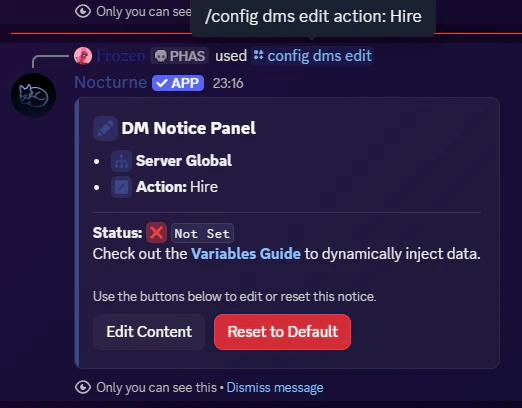 *This will bring up the menu to edit the **server-global** message for **Hire**.*
**If the `[tree]` parameter is used,** the message will be set for that specific tree.
```text Example theme={null}
/config dms edit action:Hire tree:Moderation
```
*This will bring up the menu to edit the **server-global** message for **Hire**.*
**If the `[tree]` parameter is used,** the message will be set for that specific tree.
```text Example theme={null}
/config dms edit action:Hire tree:Moderation
```
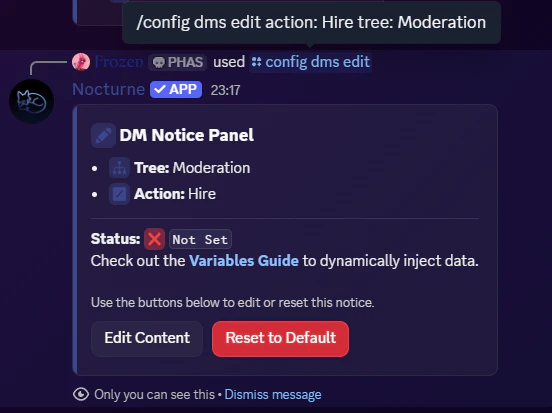 *This will bring up the menu to edit the **Hire** message for the **Moderation** tree.*
***
Upon running the command, Nocturne will present you with two buttons:
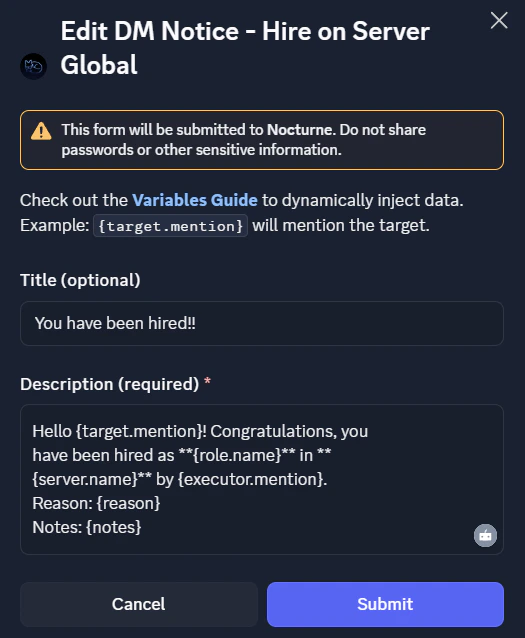
* **Edit Content** button
* Clicking this opens a Discord Modal where you can construct your message.
* You can provide a **Title** (optional, max. 128 characters) and a **Description** (required, max. 2048 characters).
* You can use variables like `{target.mention}` or `{reason}` here! *See the **[Variables Guide](/guide/variables-guide)** for the full list.*
*This will bring up the menu to edit the **Hire** message for the **Moderation** tree.*
***
Upon running the command, Nocturne will present you with two buttons:
* **Edit Content** button
* Clicking this opens a Discord Modal where you can construct your message.
* You can provide a **Title** (optional, max. 128 characters) and a **Description** (required, max. 2048 characters).
* You can use variables like `{target.mention}` or `{reason}` here! *See the **[Variables Guide](/guide/variables-guide)** for the full list.*
 * **Reset to Default** button
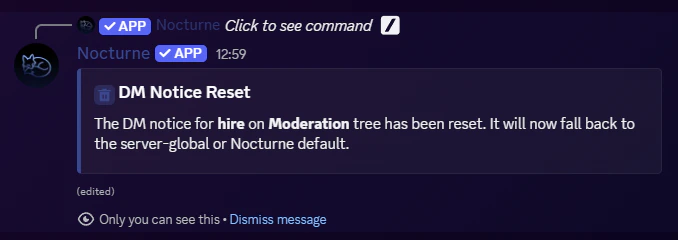
* Clicking this will immediately delete your custom configuration for this specific action/tree from the database.
* **Reset to Default** button
* Clicking this will immediately delete your custom configuration for this specific action/tree from the database.
 **Discord Limitation:** Discord's modals do not support native autocomplete for channel / user / role mentions or emojis. If you type `@` or `#`, no menu will appear. If you want to ping specific channels or users, or use custom emojis, you must use their raw ID formats. \
*Check out Discord's official [Message Formatting Guide](https://docs.discord.com/developers/reference#message-formatting) to learn how to format these IDs properly!*
***
**Discord Limitation:** Discord's modals do not support native autocomplete for channel / user / role mentions or emojis. If you type `@` or `#`, no menu will appear. If you want to ping specific channels or users, or use custom emojis, you must use their raw ID formats. \
*Check out Discord's official [Message Formatting Guide](https://docs.discord.com/developers/reference#message-formatting) to learn how to format these IDs properly!*
***
Testing a Notice
Because these messages rely heavily on dynamic variables, you probably want to see what they look like before accidentally sending a broken format to a user. The test command outputs a mock version of the DM directly into the channel you run it in, using some dummy data.
User: Manage Server
```text Command theme={null}
/config dms test [tree]
```
**If the `[tree]` parameter is skipped,** the server-global message will be tested.
```text Example theme={null}
/config dms test action:Hire
```
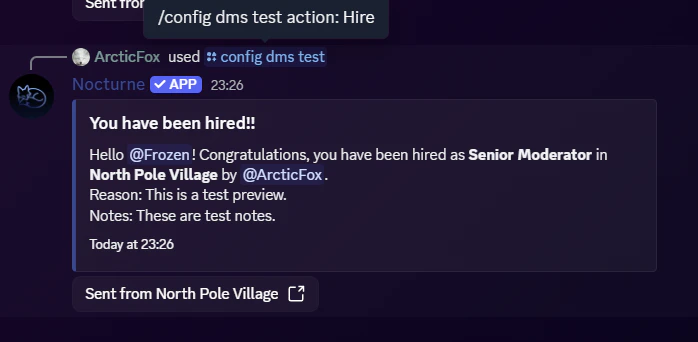 If no server-global message is set for the specified action, it will display the built-in message.
**If the `[tree]` parameter is used,** the tree-specific will be tested.
```text Example theme={null}
/config dms test action:Hire tree:Event Team
```
If no server-global message is set for the specified action, it will display the built-in message.
**If the `[tree]` parameter is used,** the tree-specific will be tested.
```text Example theme={null}
/config dms test action:Hire tree:Event Team
```
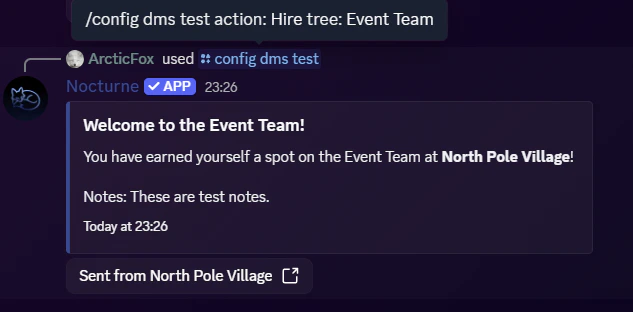 If no tree-specific message is set for the specified action, it will display the server-global message for that action.
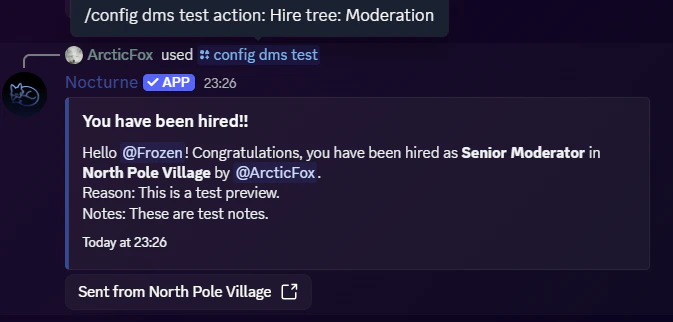 *Here, since there is no configured **Hire** message for the **Moderation** tree, it displays the server-global message.*
***
*Here, since there is no configured **Hire** message for the **Moderation** tree, it displays the server-global message.*
***
Important Overrides & Flags
As a final note, keep in mind that customising your messages does not force the bot to send them. Sending DMs is ultimately controlled by two toggles:
1. **The Global Flag:** If the **`DM Notices Default`** flag is enabled, Nocturne will send DMs by default. On the contrary, if disabled, Nocturne will not send DMs.
2. **The Command Override:** When executing a `/staff` command, the executor always has access to an optional `[dm-user]` parameter. This allows them to manually choose whether to send or suppress the DM on a case-by-case basis, completely ignoring the global flag mentioned above!
***
Checking DM Notice Status
If you ever want to check which DM Notices have already been configured, you can run the following commands:
* **`/tree view [tree]` (with the `[tree]` parameter)**
* This will let you know if DM Notices have been configured for that specific tree.
* **`/config view`**
* This will let you know if server-global DM Notices have been configured or not.