> ## Documentation Index
> Fetch the complete documentation index at: https://nocturneidle.mintlify.site/llms.txt
> Use this file to discover all available pages before exploring further.
# Config Overview & Flags
> he central control panel for Nocturne. Configure behaviour flags, log channels, whitelisted roles, DM notices, and more.
The `/config` command group acts as the central control panel for Nocturne. Instead of forcing your server to adapt to the bot, these commands allow you to tailor the bot's underlying logic, limits, and behaviour to match how your community already operates.
***
Viewing Your Configuration
Before and after making any changes, you can pull up a complete dashboard of your server's settings. This command displays your active behavioural flags, your log channel, configured whitelists, global DM notices, and overall system health.
User: Manage Server
```text Command theme={null}
/config view
```
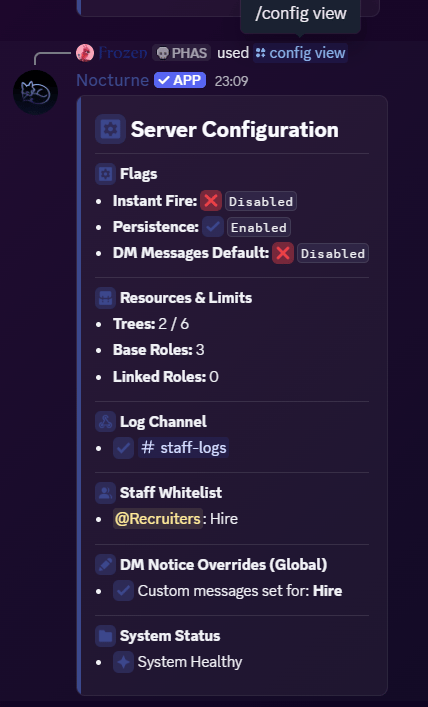 If you are ever unsure whether a specific setting is turned on, or if you want to check how many trees you have active, `/config view` should always be your first stop!
***
If you are ever unsure whether a specific setting is turned on, or if you want to check how many trees you have active, `/config view` should always be your first stop!
***
Server Behaviour Flags
Nocturne has three core behavioural toggles that change how the bot handles staff actions. All three are managed from a single interactive panel.
User: Manage Server
```text Command theme={null}
/config flags
```
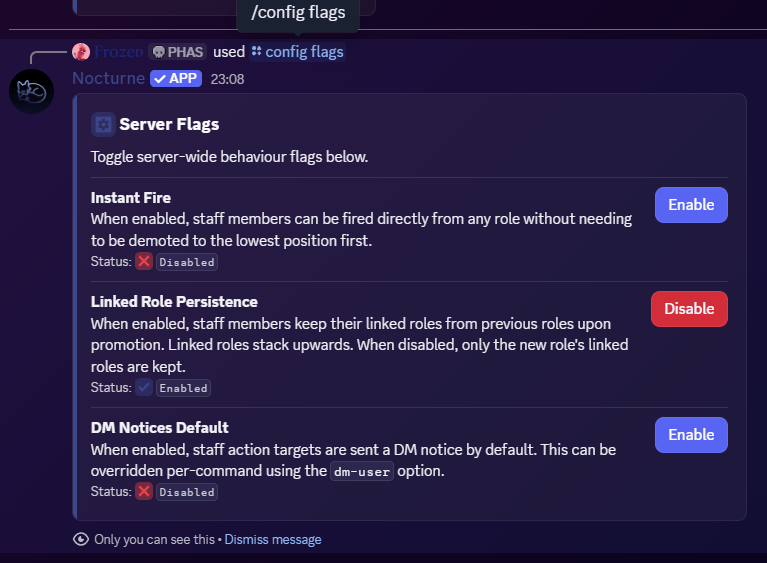 Running `/config flags` opens an **ephemeral interactive panel** visible only to you. Each flag is displayed with a short description, its current status, and a button to toggle it on or off instantly.
* A **blue Enable button** and the `Disabled` status means the flag is currently disabled. Clicking the button will enable the flag.
* A **red Disable button** and the `Enabled` status means the flag is currently enabled. Clicking the button will disable the flag.
***
Running `/config flags` opens an **ephemeral interactive panel** visible only to you. Each flag is displayed with a short description, its current status, and a button to toggle it on or off instantly.
* A **blue Enable button** and the `Disabled` status means the flag is currently disabled. Clicking the button will enable the flag.
* A **red Disable button** and the `Enabled` status means the flag is currently enabled. Clicking the button will disable the flag.
***
Instant Fire
By default, a staff member must be demoted step-by-step down to the lowest role in a tree before they can be fired entirely.
Enabling **Instant Fire** lets executors fire a staff member directly from any position, stripping all associated roles in one action, regardless of where they currently sit in the hierarchy.
By default, **Instant Fire** is **disabled**.
***
Linked Role Persistence
By default, when a user is promoted from an old base role to a new base role, Nocturne cleans up their profile by removing the linked roles attached to their old base role.
Enabling **Persistence** stops this cleanup. Linked roles from lower roles will remain on the user permanently as they get promoted. They will only be removed if the user is explicitly demoted or fired.
By default, **Linked Role Persistence** is **enabled**.
***
DM Notices Default
Whenever a staff action is taken (Hire, Fire, Promote, Demote), Nocturne can send a direct message to the target user notifying them of the change.
**DM Notices Default** is the global on/off switch for this feature. When disabled, Nocturne performs all staff actions silently without attempting to contact the user. If enabled, Nocturne will DM the user, letting them know about the action taken.
By default, **DM Notices Default** is **disabled**.
Regardless of the status of this flag, the executor running the `/staff` command can always use the optional `[dm-user]` field to decide whether to send a DM or not. If that option is not selected, then Nocturne will default to whatever the this flag is set to.
If you enable DM Notices Default, you will likely want to customise what those messages say. Check out the [DM Notices Guide](/commands/config/dm-notices) to learn how to personalise them per action and per tree.