> ## Documentation Index
> Fetch the complete documentation index at: https://nocturneidle.mintlify.site/llms.txt
> Use this file to discover all available pages before exploring further.
# Whitelist Roles
> Grant specific roles access to staff commands without giving them full administrative permissions.
By default, only users with the `Manage Roles` permission can run `/staff` commands.
**Whitelist Roles** allow you to grant specific roles access to the `/staff` commands without giving them full administrative rights.
It is important to note that whitelisting a role **only** grants access to the staff actions (`/staff hire`, `/staff fire`, `/staff promote`, and `/staff demote`). Whitelisted users cannot alter the hierarchies using `/tree` or change bot settings using `/config`.
***
Managing a Whitelist Role
Whitelist management is handled through a single interactive panel. Upon running the command, Nocturne will open an ephemeral panel, showing all four staff permissions and their current state. You can make use of the buttons provided to toggle permission for each command.
User: Manage Server
```text Command theme={null}
/config whitelist-role
```
```text Example theme={null}
/config whitelist-role role:@Recruiters
```
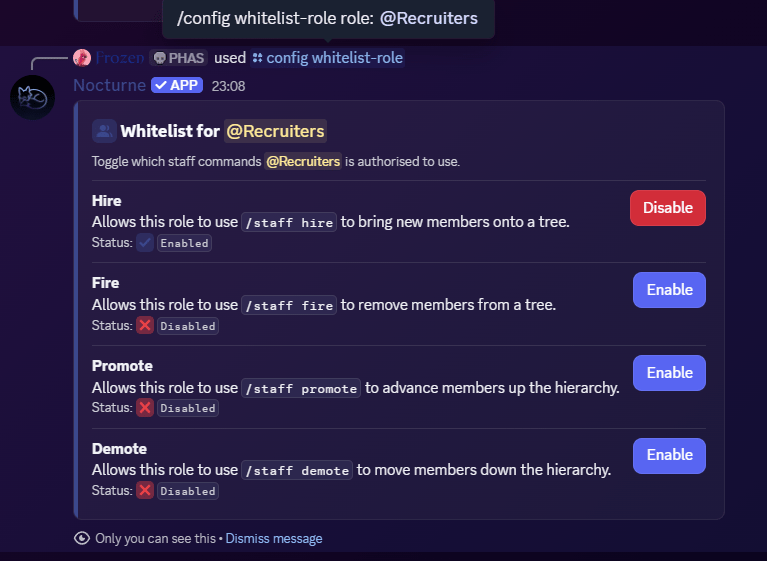 The panel displays one row for each staff action: **Hire**, **Fire**, **Promote**, and **Demote**.
* A **blue Enable button** and the `Disabled` status means the permission is currently disabled. Clicking the button grants the role access to that action.
* A **red Disable button** and the `Enabled` status means the permission is currently enabled. Clicking the button revokes access to that action.
You can mix and match permissions freely. For example, to create a recruiter role that can only hire and promote, simply enable **Hire** and **Promote** while leaving **Fire** and **Demote** disabled.
If all four permissions are disabled for a role, Nocturne automatically removes it from the whitelist entirely.
***
The panel displays one row for each staff action: **Hire**, **Fire**, **Promote**, and **Demote**.
* A **blue Enable button** and the `Disabled` status means the permission is currently disabled. Clicking the button grants the role access to that action.
* A **red Disable button** and the `Enabled` status means the permission is currently enabled. Clicking the button revokes access to that action.
You can mix and match permissions freely. For example, to create a recruiter role that can only hire and promote, simply enable **Hire** and **Promote** while leaving **Fire** and **Demote** disabled.
If all four permissions are disabled for a role, Nocturne automatically removes it from the whitelist entirely.
***
Checking Whitelisted Role Status
To see an overview of all whitelisted roles and which actions they have access to, run `/config view`. It will list every whitelisted role alongside its permitted actions.