
The Fallback System
Before configuring your messages, it is important to understand how Nocturne decides which message to send. When an action is executed, the bot checks for messages in this specific order:- First, it checks if you created a unique message for that specific action in that specific tree (e.g., a “Hire” message explicitly for the Moderation tree).
- If no tree-specific message exists, it falls back to your server’s global message for that action.
- If neither is set, Nocturne uses its built-in default message.
Editing a Notice
You can configure your messages using the edit command. This command does not ask you to type the message right away; instead, it generates an interactive menu. User: Manage Server- Command
- Without [tree] parameter
- With [tree] parameter
Command
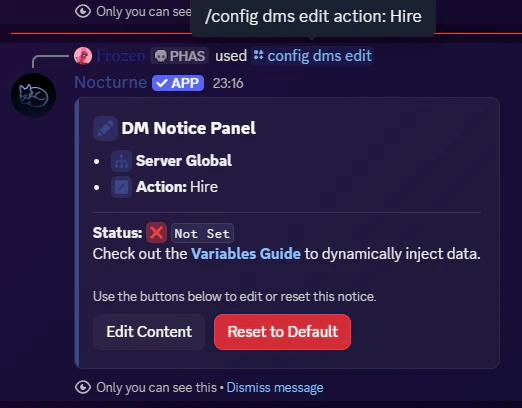
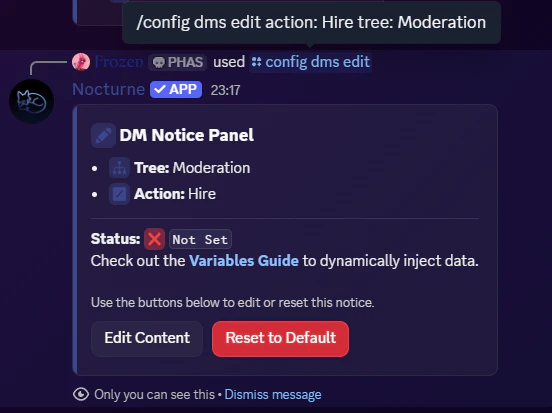
How the Interactive Menu Works
Upon running the command, Nocturne will present you with two buttons:- Edit Content button
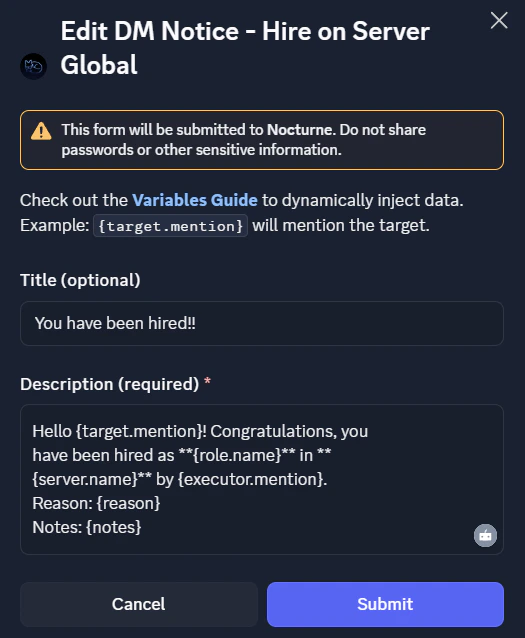
- Clicking this opens a Discord Modal where you can construct your message.
- You can provide a Title (optional, max. 128 characters) and a Description (required, max. 2048 characters).
- You can use variables like
{target.mention}or{reason}here! See the Variables Guide for the full list.
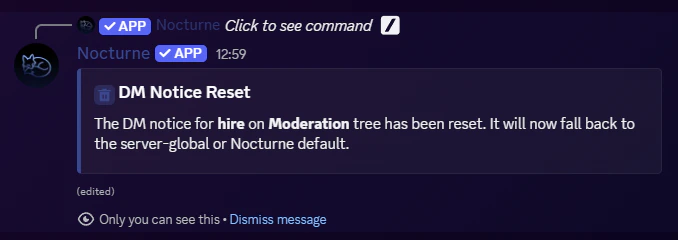
- Reset to Default button
- Clicking this will immediately delete your custom configuration for this specific action/tree from the database.
Testing a Notice
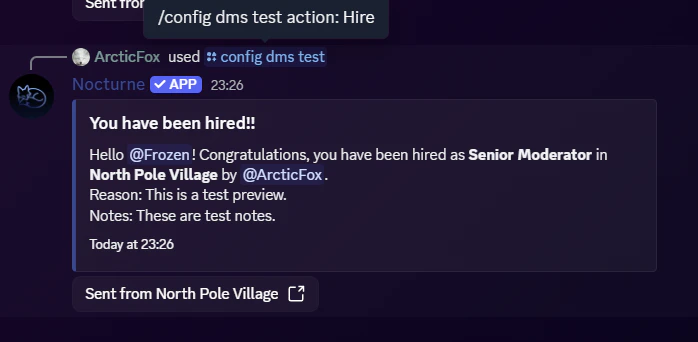
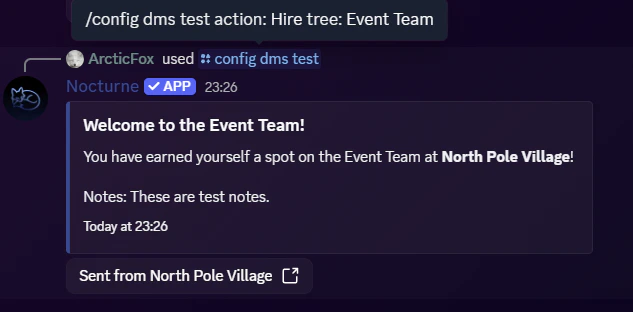
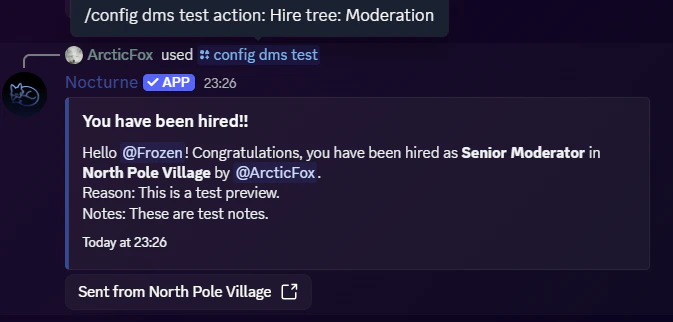
Because these messages rely heavily on dynamic variables, you probably want to see what they look like before accidentally sending a broken format to a user. The test command outputs a mock version of the DM directly into the channel you run it in, using some dummy data. User: Manage Server- Command
- Without [tree] parameter
- With [tree] parameter
Command
Important Overrides & Flags
As a final note, keep in mind that customising your messages does not force the bot to send them. Sending DMs is ultimately controlled by two toggles:- The Global Flag: If the
DM Notices Defaultflag is enabled, Nocturne will send DMs by default. On the contrary, if disabled, Nocturne will not send DMs. - The Command Override: When executing a
/staffcommand, the executor always has access to an optional[dm-user]parameter. This allows them to manually choose whether to send or suppress the DM on a case-by-case basis, completely ignoring the global flag mentioned above!
Checking DM Notice Status
If you ever want to check which DM Notices have already been configured, you can run the following commands:/tree view [tree](with the[tree]parameter)- This will let you know if DM Notices have been configured for that specific tree.
/config view- This will let you know if server-global DM Notices have been configured or not.