/staff command group is the day-to-day side of Nocturne. To run (most of) these commands, executors either need the native Discord Manage Roles permission, or must be granted access via a Whitelist Role.
Want to know more about Whitelist Roles? Check out our Whitelist Role Guide.
Common Parameters
Across all staff actions, you will see a few recurring optional and required parameters. Here is what they do:[reason]- A brief explanation for the action. This will be mentioned in the log activity.
- Note: This is optional for Hires and Promotions, but strictly required for Fires and Demotions.
- Predefined reasons are used here. You can configure reasons, and they will surface with this parameter when you start typing.
[notes]- An optional secondary text field, usually used to link evidence, add a private note, or expand on the reason.
- This is not mentioned in the log activity. It fills the
{notes}variable in custom DM Notices.
[dm-user]- It is a True/False toggle that overrides the server’s global DM Message setting on a case-by-case basis.
Hiring Staff
Hiring a user automatically assigns them the entry-level Base Role (Position 1) of the specified tree, alongside any Linked Roles attached to it. User: Manage Roles (or Whitelisted Role)- Command
- Visual Output
Command
Example
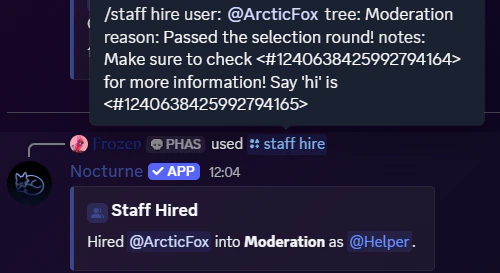
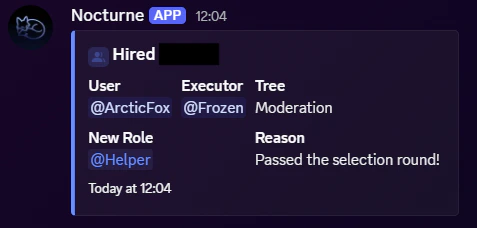
- In the above example,
@ArcticFoxwill be given the first role in the Moderation tree. - If configured, they will also be sent a DM Notice, which will include the note as filled in the command.
Promoting Staff
Promoting a user moves them one step up the tree’s hierarchy (e.g., from Position 1 to Position 2). Nocturne automatically removes their old Base Role and assigns the new one. It will also automatically update its linked roles. User: Manage Roles (or Whitelisted Role)- Command
- Visual Output
Command
Example
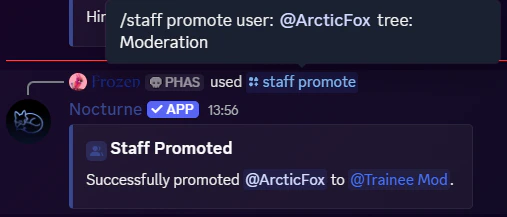
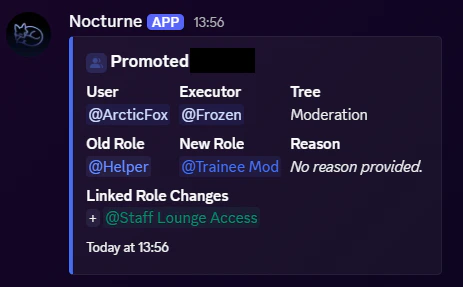
- In the above example,
@ArcticFoxwill gain the next role in the Moderation tree. They will also receive the linked roles associated with that new role. - If configured, they will also be sent a DM Notice.
Demoting Staff
Demoting a user moves them one step down the tree’s hierarchy (e.g., from Position 2 to Position 1). Because this is a negative action, a reason is always required. User: Manage Roles (or Whitelisted Role)- Command
- Visual Output
Command
Example
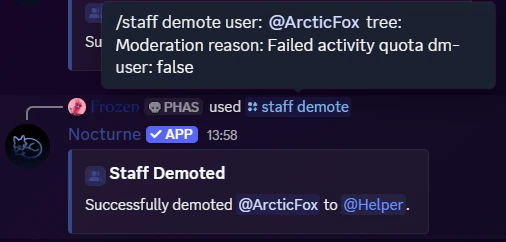
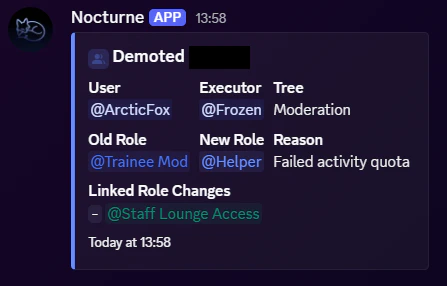
- In the above example,
@ArcticFoxwill be demoted down a role in the Moderation tree. They will also lose the linked roles associated with the previous role. - In this specific example,
[dm-user]is set to false. Nocturne will not send a DM notice to@ArcticFox.
Firing Staff
Firing a user completely strips them of their current Base Role and all associated Linked Roles within that tree. Like demotions, a reason is always required. User: Manage Roles (or Whitelisted Role)- Command
- Visual Output
Command
Example
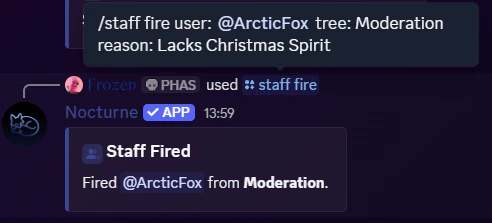
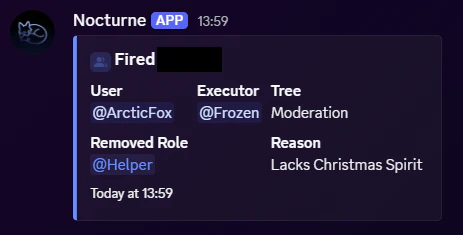
- In the above example,
@ArcticFoxwill lose all roles from the associated tree. - If configured, they will also be sent a DM Notice.
Staff Information
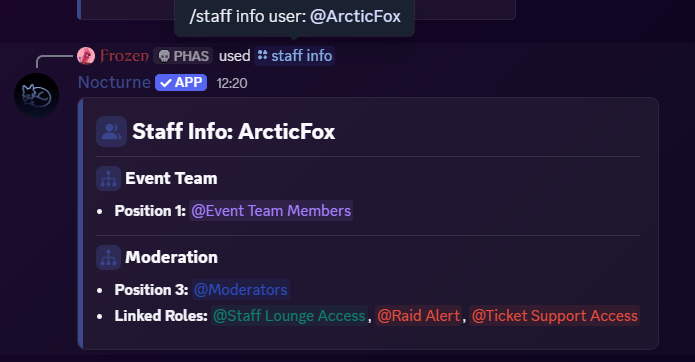
You can look up a user’s staff roles across all trees in the server, along with the position in the tree, their linked roles, and any discrepancies on their profiles, such as having multiple base roles from the same tree, using a single/staff info command.
- Command
- Visual Output
Command
Example