/staff command. Set up reasons like “Inactivity” or “Failed Trial Period” once, and they’ll surface as autocomplete suggestions whenever a reason field is required.
Staff are never restricted to the predefined list. Typing a custom reason that isn’t suggested is still allowed.
Managing Reasons
You can add, view, and delete your predefined reasons using the following command, which shows up an interactive panel. User: Manage Server- Command
- Visual Output
Command
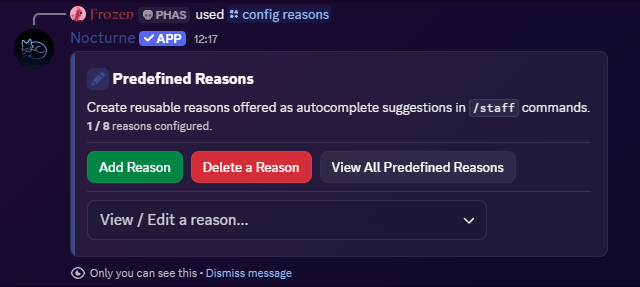
- A green Add Reason which opens up a modal which allows you to input a label as well as the actual content.
- A red Delete a Reason button which opens up a modal to allow you to delete a specific predefined reason.
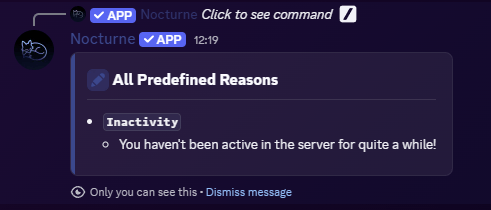
- A grey View All Reasons button which lists all reasons, including the labels and description.
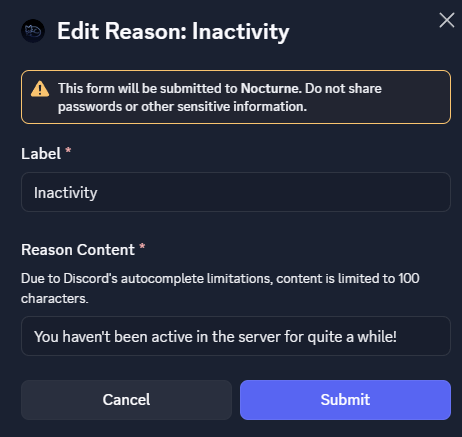
- A View / Edit select menu from which you can choose an already set reason and edit it.
How the Interactive Panel Works
Upon running the command, Nocturne will present you with two buttons:- Add Reason button
- Clicking this opens a Discord Modal where you can construct your reason.
- You have to provide a Label, which is unique and will be of a maximum length of 25 characters. It is not used as a part of the predefined reasons, but rather it is for internal management.
- You have to provide the Content, which is the actual reason that gets autocompleted. This is what the users see, and the log messages show. This can be a maximum of 100 characters.
Only the Reason Content appears in the
/staff command’s autocomplete suggestions. Labels are a management convenience only and are never shown to the person running the command during autocomplete. The autocomplete search also matches against labels internally, so typing a label name (e.g. Inactivity) will still surface the matching reason’s content as a suggestion.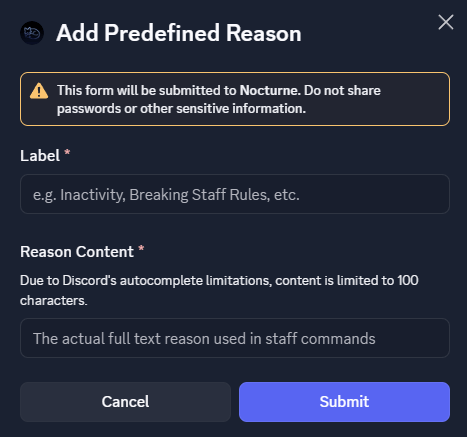
- Delete a Reason button
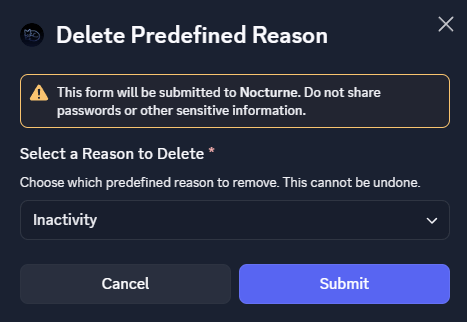
- Clicking this opens a Discord Modal which will contain a select menu with all of your predefined reasons.
- You have to select one and submit. On submission, the chosen predefined reason will be deleted.
- View All Reasons button
- Clicking this shows a follow-up message containing all the reasons configured in your server.
- View / Edit select menu
- This select menu lists all the predefined reasons in your server.
- Selecting one of the options shows a Discord Modal where you can edit the corresponding reason.