Creating a Tree
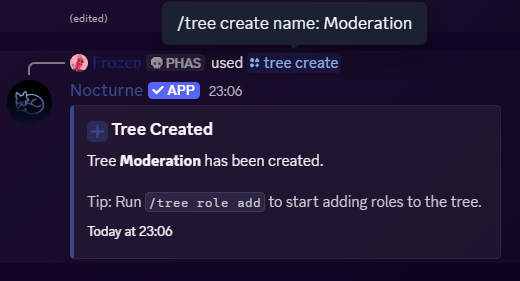
To start building a hierarchy, you first need to create the tree itself. User: Manage ServerCommand
- Text Example
- Visual Output
Example
Viewing Trees
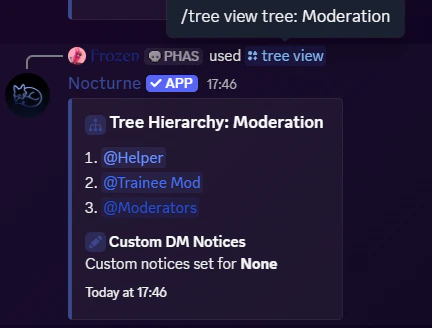
You can check the configuration of your trees at any time. This will display all the Base Roles, their Hierarchy Positions, and any Linked Roles attached to them, along with the status of custom DM Notices for that tree. User: Manage ServerCommand
- Without [tree] parameter
- With [tree] parameter
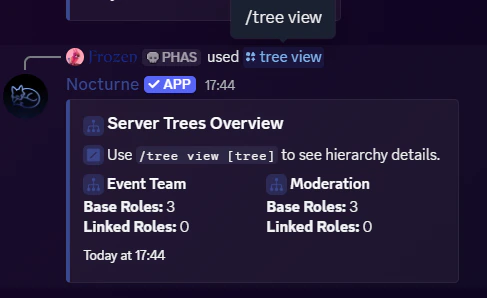
If you leave
[tree] parameter blank, the bot will display a high-level summary of all the trees currently configured in your server.- Text Example
- Visual Output
Example
Renaming a Tree
If you ever need to rebrand a department, you can easily rename an existing tree without having to recreate all the roles inside it. User: Manage ServerCommand
- Text Example
- Visual Output
Example
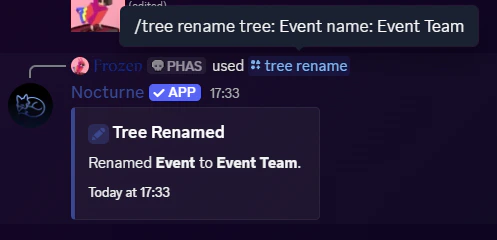
Renaming a tree updates it everywhere in the database. You will immediately use the new name when running
/staff commands.Deleting a Tree
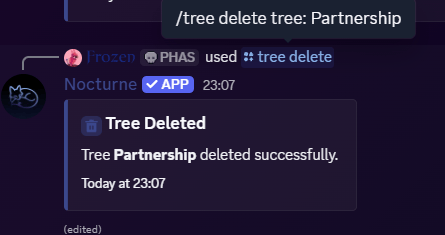
If a department is shut down or you want to start from scratch, you can permanently delete a tree. User: Manage ServerCommand
- Text Example
- Visual Output
Example