
Common Uses for Linked Roles
If you are wondering why you might need this feature, here are the most common ways servers utilise linked roles:- Permission Tokens
- Many servers use separate roles used exclusively for permissions (e.g., a “Ban Perms” or “Kick Perms” role, especially if your moderation bot requires them). This sometimes may not even have the actual Discord permission associated with it, thus maintaining consistency of performing actions on a user with a bot.
- Cosmetics & Access
- These are roles that grant access to hidden channels or provide other benefits (e.g., “Staff Lounge Access”, “Staff Giveaway Bonus”).
- Secondary Roles
- These can be notification or operational roles crucial for the duties (e.g., “Raid Alert Ping”, “Ticket Support Ping”, “Log Access”).
Adding a Linked Role
To automate a secondary role, you must attach it to a specific base role within your tree. User: Manage Server- Command
- Visual Output
Command
<base>: The primary hierarchy role the user holds.<role>: The secondary role you want Nocturne to assign automatically.
Example
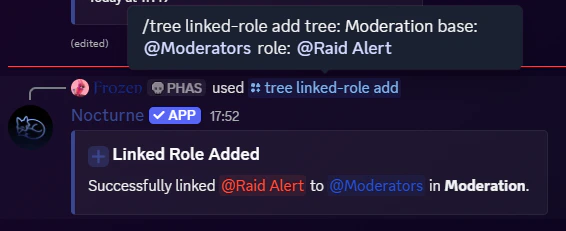
The base role you specify must already be configured in the tree you are going to use it in.
When you run 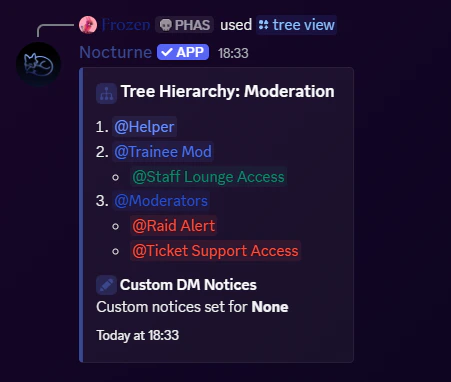
/tree view [tree] (with the [tree] parameter), you will see the linked roles as subpoints below the associated base role.Removing a Linked Role
If you no longer want a secondary role to be assigned automatically, you can unlink it. User: Manage Server- Command
- Visual Output
Command
Example
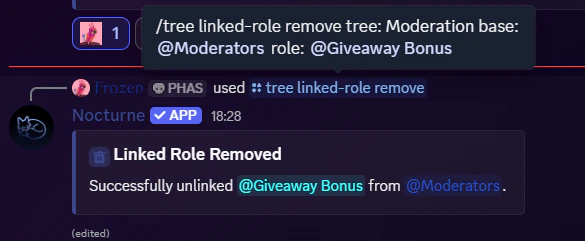
Unlinking a role only stops Nocturne from automating it in the future. It will not automatically strip the role from users who already have it, and neither will it delete the role from the server.
Linked Role Persistence
Linked Roles can be configured to either stay as a user gets promoted, or they can be configured to be role-specific. There is a configuration setting called persistence, which dictates this behaviour.- If enabled, when a user is promoted to a new base role, they will keep the linked roles they got from the previous base roles.
- If disabled, when a user is promoted, they automatically lose the linked role associated with the previous base role and gain the linked roles associated with their new role.
Read more about how to toggle this behaviour on the Configuration Overview page.